
You can export your contact records from Master Gas via the online portal and then import them in to Xero accounting software.
1. Login to your Master Gas Portal
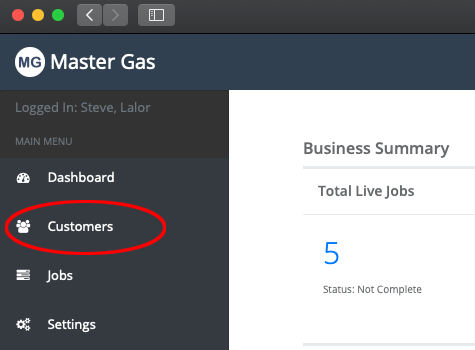
2. When logged in select customers from the left menu.
3. Select the Export for Xero button, the download will be saved in your downloads folder.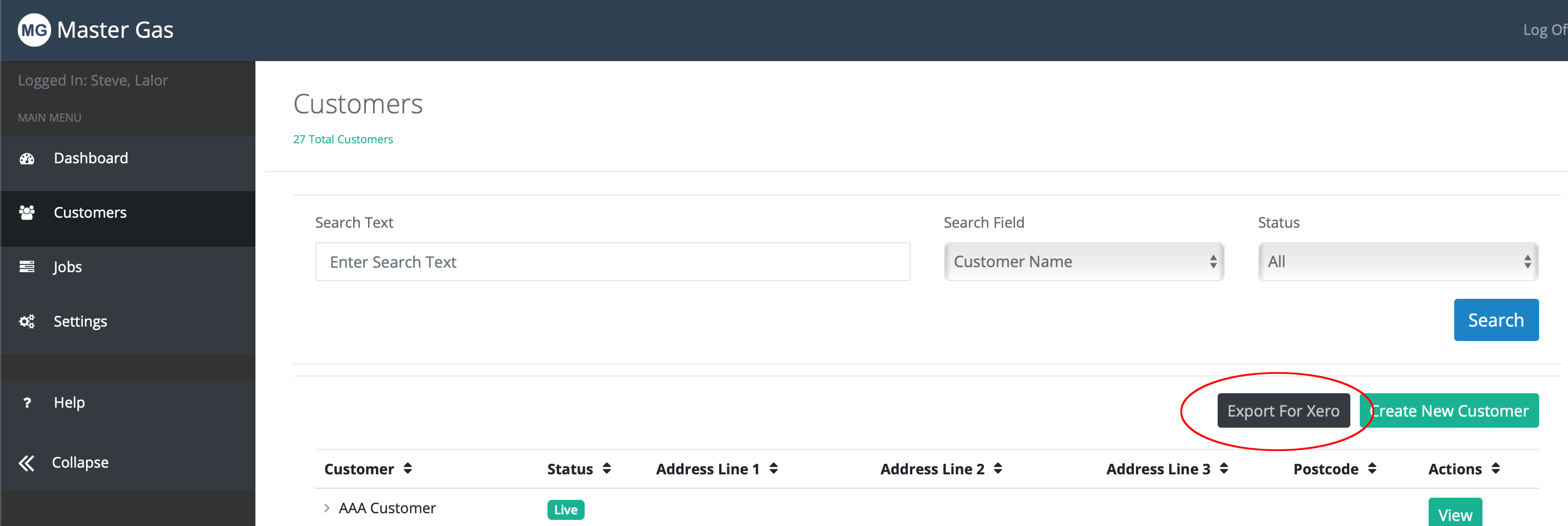
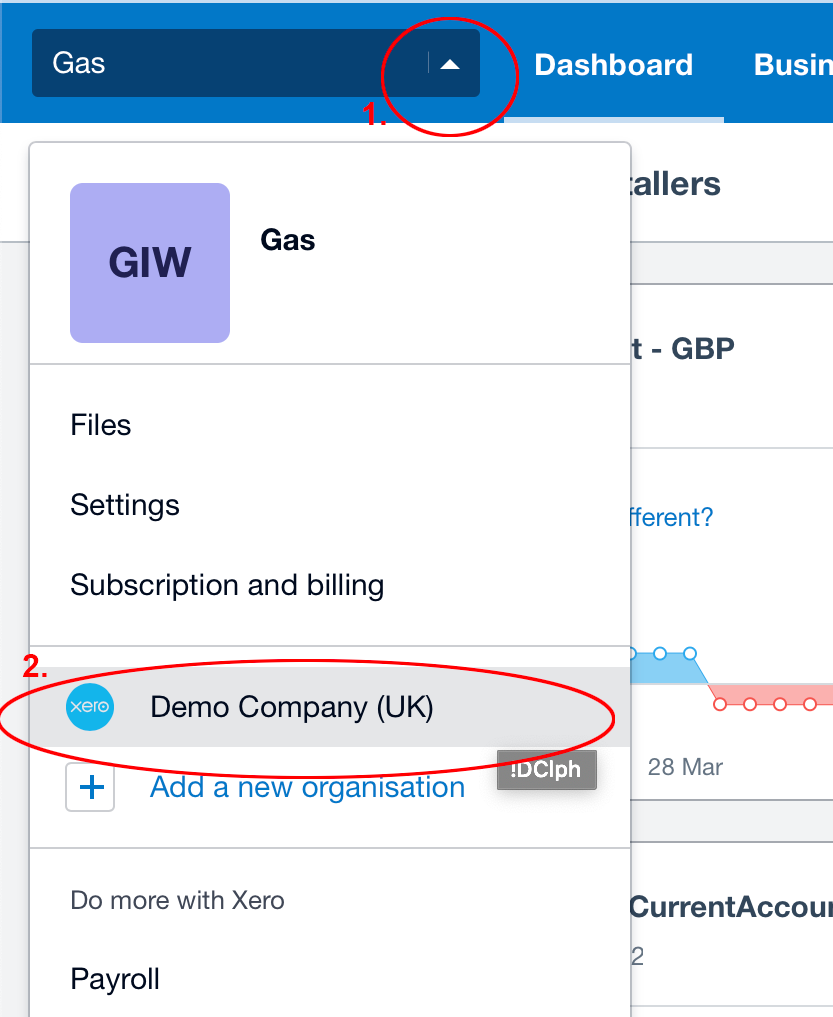
4. If this is the first time you have imported in to your Xero we would strongly recommend you first import in to the demo company to check your data export is correct. This means if anything is wrong it will not cause an issue in your Xero data as the demo company can be reset. Select the arrow next to the company name, and select Demo Company (UK).
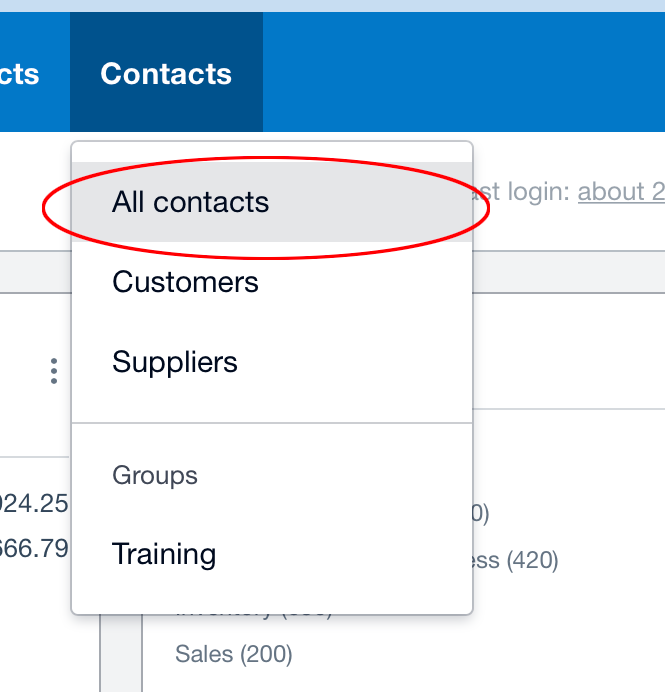
5. Select the Contacts option at the top and then select All Contacts
6. Select the Import button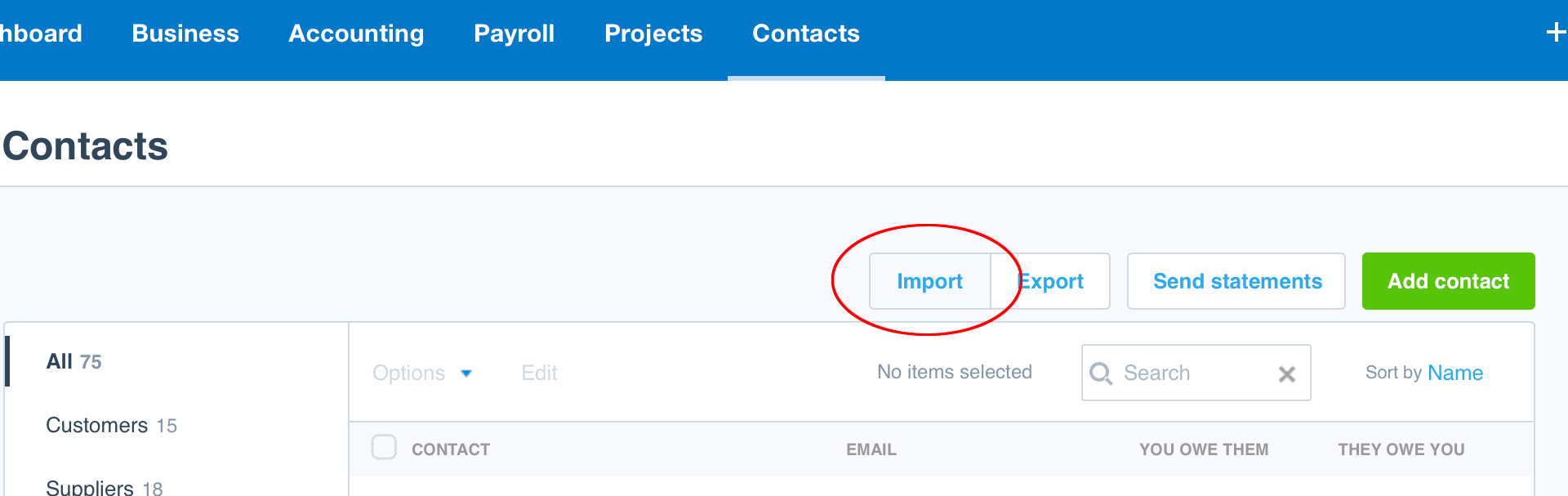
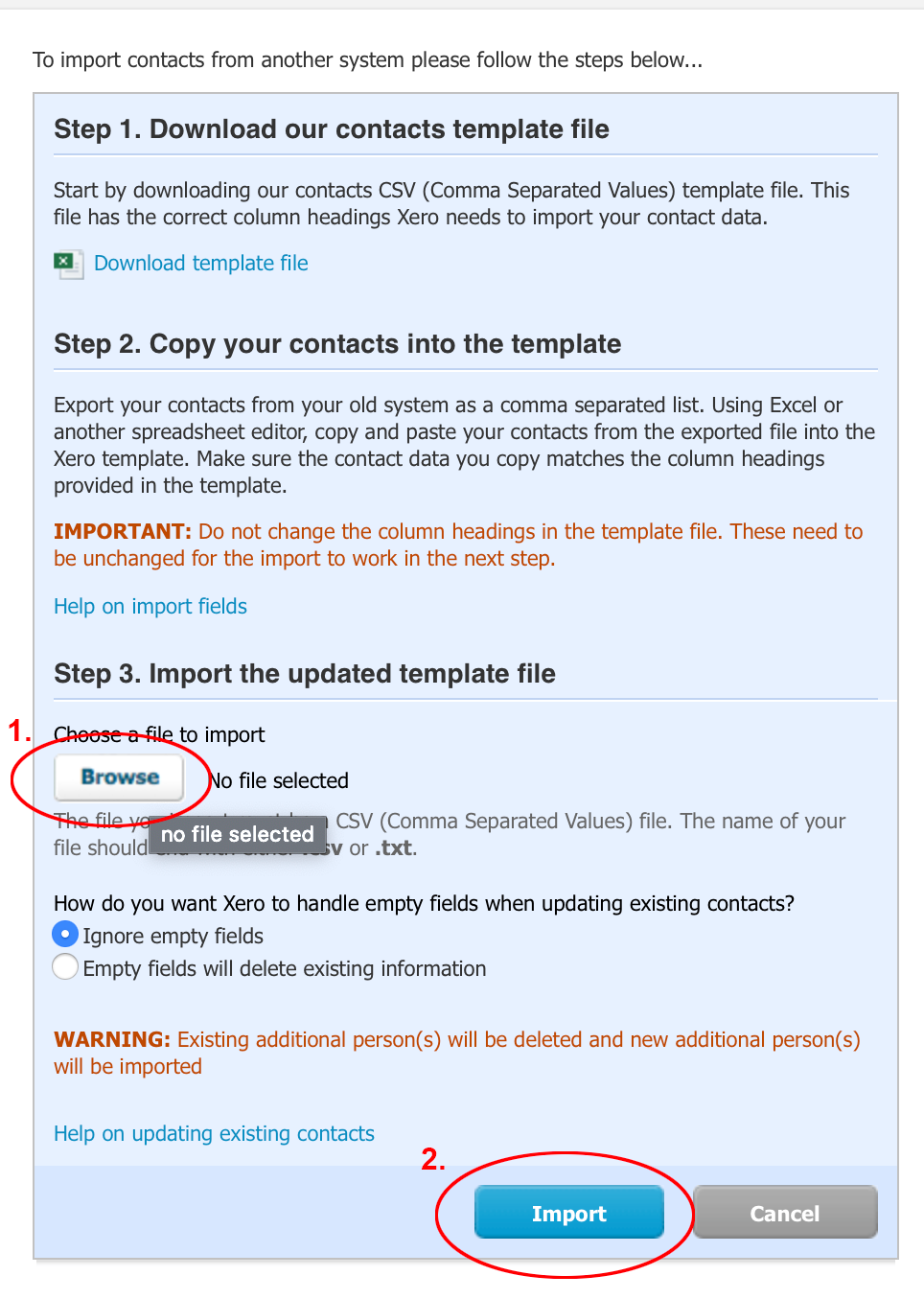
7. You will be presented with the import page, you can skip step 1 and step 2, Master Gas has already created this file ready for you.
Select the Browse button in Step 3.
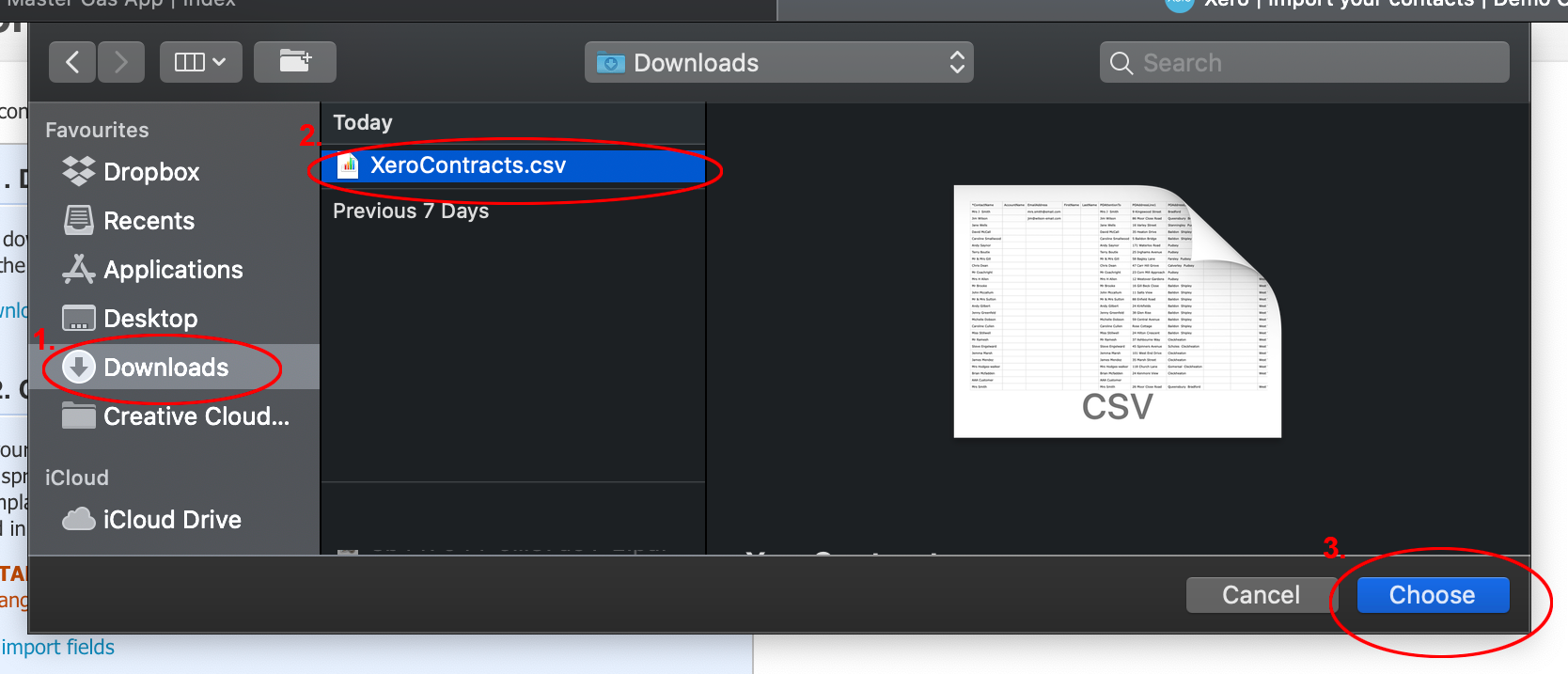
8. The file selection box may look different for you, however, find the downloads folder, and then the XeroContacts.csv file and select Choose or OK to accept the file.
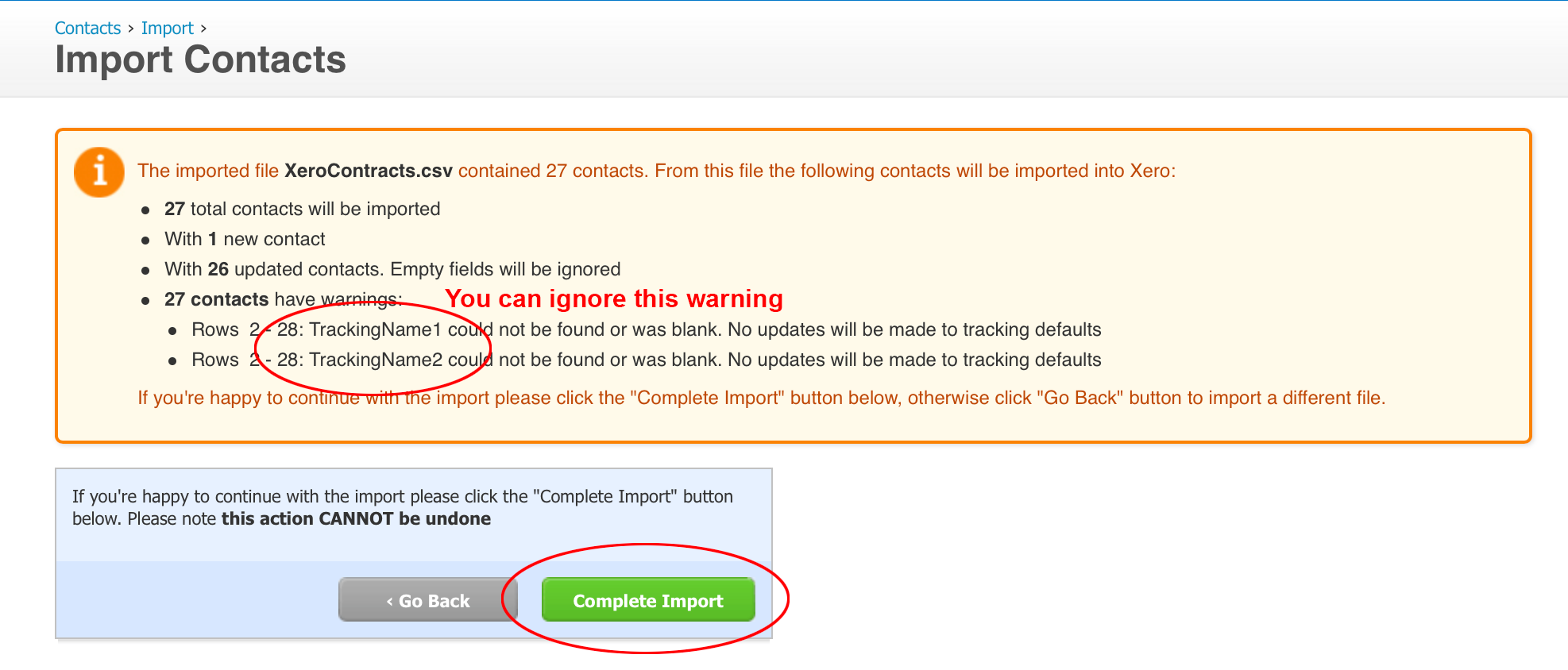
9. Xero will now attempt to import the file. Check the message and ensure no issues are identified. You can ignore the warnings for TrackingName1 and TrackingName2.
If all is ok select Complete Import.
10. You can now look in your contacts and check the imported contacts look as you expect.
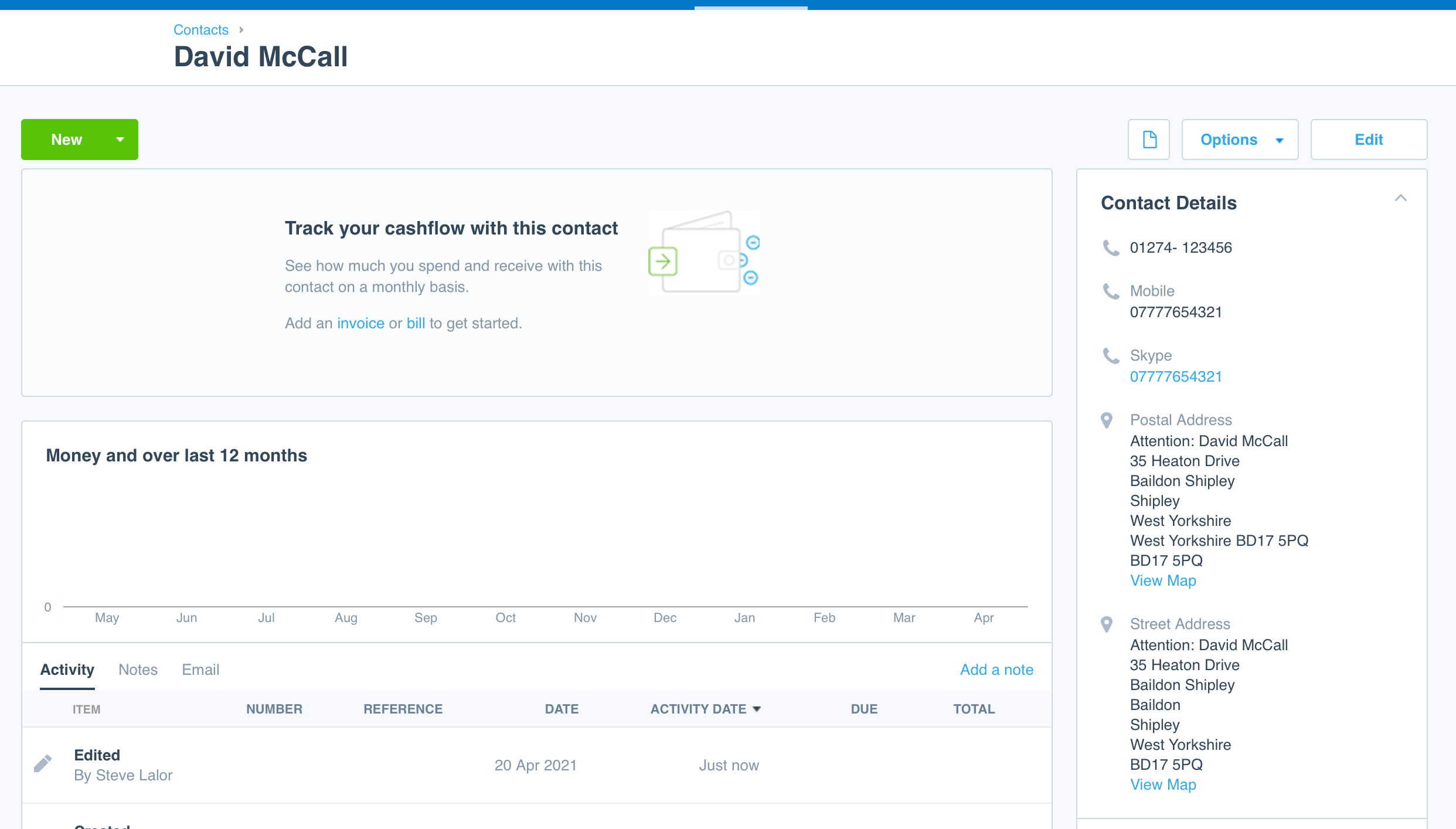
11. If everything is as expected you can now repeat the process after changing back to your live company. Go back to Step 4 and change the company to your live company and repeat steps 5 - 9 to import your data in to your live database. Please note, when a contact is imported in to Xero it cannot be deleted (only archived) so please make sure before importing you are happy with the data import in to your Demo Company.
You can import on a regular basis if you like, any repeated or existing contacts would be updated using the MG data, alternatively you can create the file from Master Gas, then open it up in Excel, remove any rows you do not wish to be imported and save the csv file. It is important to not change, delete or remove the column headers or column order.
Comments